
Mascot Downloads
Download this tar.gz file to install all my Fire Emblem 4 sitters at once.
Click this form if you'd like to request any Fire Emblem 4 characters.
Julia - Fire Emblem: Genealogy of the Holy War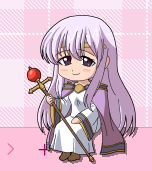
|
Lewyn - Fire Emblem: Genealogy of the Holy War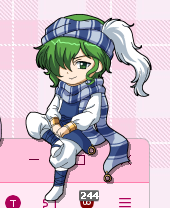
|
Fury / Erinys - Fire Emblem: Genealogy of the Holy War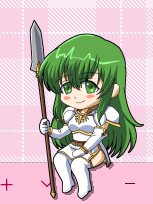
|
Lachesis - Fire Emblem: Genealogy of the Holy War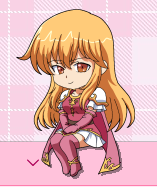
|
Finn - Fire Emblem: Genealogy of the Holy War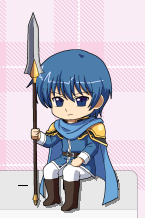
|
Laylea - Fire Emblem: Genealogy of the Holy War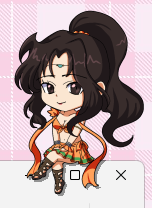
|
Sigurd - Fire Emblem: Genealogy of the Holy War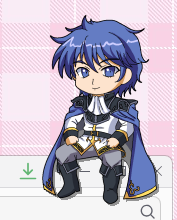
|
Oifey - Fire Emblem: Genealogy of the Holy War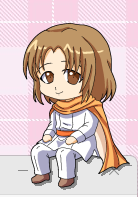
|
Lex - Fire Emblem: Genealogy of the Holy War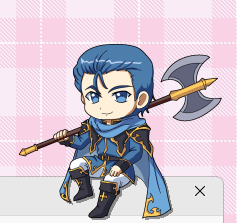
|
Azel - Fire Emblem: Genealogy of the Holy War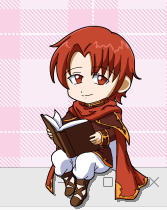
|
MaCoPiX Installation Guide
This guide explains how to install MaCoPiX mascots using the recommended mass-install method.
Important note: MaCoPiX has a tendency to crash. This is normal — don’t stress if it closes unexpectedly.
Running Multiple Sitters
MaCoPiX supports running multiple sitters at the same time. To do this, simply open multiple instances of MaCoPiX.
Each running instance can load its own mascot or launcher menu.
Mass Install (Recommended)
-
Download the
.tar.gzfile from the mascot page. -
Make sure MaCoPiX is installed on your system.
If you don’t have it yet, download it from the official website:
https://rosegray.sakura.ne.jp/macopix/dl-e.html -
Launch MaCoPiX. On first launch, you may see the message:
"No menu files are installed! Please install one menu file at least." -
To install the mascot pack, either:
- Drag and drop the
.tar.gzfile directly into the MaCoPiX window, or -
Use the menu:
Install > Launcher Menu [User] and select the.tar.gzfile.
- Drag and drop the
- Once installed, the launcher menu will appear and allow you to choose which mascots you want to add.